 EBONEX
Build for EBONEX
Everything a researcher can run inside EBONEX is one of four things: a Tool, a Skill, a Plugin or an MCP server. This page is the format of each one, with the real field names, the real limits, and examples that are checked against the validator the product uses.
Concepts
A researcher asks a question in plain language. The agent answers it by calling things you can build. There are four kinds, and they stack:
Tool
A package that exposes named operations the agent can call — fetch a structure, run a docking job, read a trajectory. A Tool is the only one of the four that does work. It declares what access it needs (the web, your files, the browser, email, the schedule, notifications) and when it needs it, and the researcher sees that list before they add it.
Skill
Written instructions the agent loads when a study calls for them: how to judge a pose, how to lay out a methods section, which checks a result has to survive. A Skill runs nothing. Its public title and description are how the agent decides it is relevant; the instructions themselves stay private and are loaded only after the researcher has enabled the package that carries them.
Plugin
A bundle. A plugin carries skills, and an in-product plugin can also declare an ordered chain: the steps of one study, in order, each step performed either by one operation of a Tool or by one Skill. The chain is why a researcher can ask for “a molecular dynamics study” once instead of sequencing a simulation, an analysis, the figures and a report by hand.
MCP server
A connection to a service outside EBONEX, over the Model Context Protocol. Its tools join the agent's tool list while it is connected. An MCP server is configured per workspace rather than published as a package, and its sign-in details are stored as credential references — never as values you can read back.
Two ways to ship
Which one you use decides almost everything else on this page.
A single JSON file you write by hand, upload from the Marketplace, and publish for review. It contains no executable code and never runs any. A plugin file carries skill instructions, which are text the agent reads. A tool file declares operation names only — it describes a Tool and starts working once a trusted provider supports those operations.
A TypeScript package inside EBONEX that registers a real tool with the agent and a capability with the library. This is how Molecular Dynamics and the docking tools are built. It can execute, declare permissions and declare a chain. It reaches researchers as an administrator-reviewed release, not as an upload.
If what you have is knowledge — a protocol, a review standard, a way of writing something up — a declarative plugin is the whole job and you can publish it today. If what you have is a program to run, write the declarative tool file to stake out the operations, and talk to us about the in-product package that backs them.
Make a Tool
The declarative Tool package
One JSON file. The validator accepts exactly these six fields and rejects the file if any is missing or anything else is present:
{
  "format": "ebonex-science-tool/v1",
  "id": "pdb-fetch",
  "title": "PDB Fetch",
  "description": "Fetch a structure from the RCSB Protein Data Bank into the study folder, and list its chains and ligands.",
  "version": "1.0.0",
  "operations": ["fetch-entry", "list-chains", "save-to-study"]
}format— the literal stringebonex-science-tool/v1. Anything else is refused.id— lowercase kebab-case (a-z,0-9and single hyphens), up to 80 characters. This is the package's identity for good; pick it once.title— up to 120 characters.description— up to 500.version— up to 64, free-form, so1.0.0or2026.1both work.operations— between 1 and 32 names, each lowercase kebab-case, up to 80 characters, no duplicates.- The whole file: up to 512 KB.
Every text field is trimmed and must not be empty. The file is read in the browser before it is sent anywhere, so a bad field is reported to you immediately.
Inputs, outputs and access
A declarative tool file carries no input schema, no output schema and no permissions — it has no implementation to need them. What a researcher gives it and gets back is written on the listing instead, in the Publish form's What you give it and What comes back boxes, one line each:
What you give it          What comes back
Protein structure (.pdb)  Cleaned structure (.pdb)
RCSB entry code           Chain and ligand list (.csv)
Access is declared by an in-product Tool package, in its capability definition, and shown to the researcher before Add. There are seven categories — web, files, browser, email-read, email-send, schedule, notifications — and each one is asked for either on-add (needed for the Tool's basic use) or on-use (asked the first time that one feature runs).
The in-product Tool package
Two registrations. The first gives the agent something to call; the second puts it in the library and the Marketplace.
import { defineTool } from '@deepseek-ai/dsh-tools'
import { capabilityId } from '@deepseek-ai/dsh-science-capability-library'

ctx.tools.register(defineTool({
  name: 'pdb_fetch',
  description: 'Fetch an RCSB entry into the study folder and list its chains and ligands.',
  parameters: {
    pdb_id: { type: 'string', required: true, description: 'RCSB entry code, such as 5KIR.' },
    chains: { type: 'array', items: { type: 'string' }, description: 'Chains to keep, such as ["A"]; all are kept when unset.' },
  },
  async execute(args, exec) {
    // ... do the work, write files through exec, return the structured output
  },
}))

ctx.scienceLibrary.register({
  id: capabilityId('pdb-fetch'),
  kind: 'tool',
  title: 'PDB Fetch',
  description: 'Fetch a structure from the RCSB Protein Data Bank into the study folder.',
  version: '1.0.0',
  skills: [],
  field: 'databases',
  operations: ['pdb_fetch'],
  permissions: [{ id: 'web', requested: 'on-add' }],
})
field is the Marketplace filter and is one of docking, simulation, interaction-analysis, literature, writing, databases, cheminformatics, data-analysis, productivity. operations here are the tool names the model sees, so underscores are fine; in a declarative tool file they must be kebab-case.
Where the work runs
An in-product tool runs inside the EBONEX host process, with whatever access it declared. Work that needs real hardware does not run there: it is sent to EBONEX Cloud as a job on a rented GPU, the researcher is shown one estimate with the card, the hours and the cost, and nothing starts until they agree. If your tool is in that class, say so in its description — a researcher reads that description before they approve a bill.
A Tool can also answer a readiness check, so the Marketplace can show whether the local runtime it needs is there: ready, needs-setup (a step the Tool performs with approval) or unavailable (software outside EBONEX is missing), each with a sentence of explanation.
Make a Skill
A skill is never a file of its own. It travels inside a plugin package, and a plugin that carries exactly one skill is how you publish a single skill — at publish time you set Type to Skill and it appears in the Skills category.
{
  "format": "ebonex-science-plugin/v1",
  "id": "pose-review",
  "title": "Pose Review",
  "description": "Judge a docking pose against the pocket it sits in, and say what would change your mind.",
  "version": "1.0.0",
  "skills": [
    {
      "id": "pose-review-check",
      "title": "Pose check",
      "description": "Check a docking pose against the pocket, the contacts and the control.",
      "instructions": "You are reviewing one docking pose.\n\n1. State the pocket by its residues, and say how it was identified.\n2. List the hydrogen bonds with their distances, then the hydrophobic contacts.\n3. Compare the pose with the co-crystallised ligand if the entry has one; give the RMSD.\n4. Say plainly what a docking score is not: it is not a binding free energy and it does not rank weak binders reliably.\n5. End with the one measurement that would change your conclusion."
    }
  ]
}
The fields
- The manifest itself takes exactly
format,id,title,description,versionandskills. - Each skill takes exactly
id,title,descriptionandinstructions. - Skill
idis lowercase kebab-case, up to 100 characters, unique inside the plugin. Prefixing it with the plugin id keeps it unique across the catalogue too. titleup to 120,descriptionup to 500,instructionsup to 32 KiB for one skill and 256 KiB across the plugin.
What triggers it
Nothing matches on the instructions, so they are not where you write the trigger. The agent reads the skill's description, and that is the whole trigger: write it as the situation the skill is for, not as a summary of its contents. “Check a docking pose against the pocket, the contacts and the control” gets loaded when a pose needs checking; “Guidelines v2” never gets loaded at all.
The instructions are treated as private data from the moment they are uploaded. They are not shown in settings, they are not returned by a catalogue read, and they reach the agent only after the researcher enables the package. Disabling it takes them straight back out.
In an in-product package the same thing is registered as a source, so the text is loaded on demand rather than carried in a file:
ctx.scienceLibrary.registerSkill({
  id: scienceSkillId('pose-review-check'),
  title: 'Pose check',
  description: 'Check a docking pose against the pocket, the contacts and the control.',
  load: async () => readFile(new URL('./skills/pose-check.md', import.meta.url), 'utf8'),
})
Add internal: true for a workflow other workflows call but a researcher should never pick from a list.
Writing one without a file
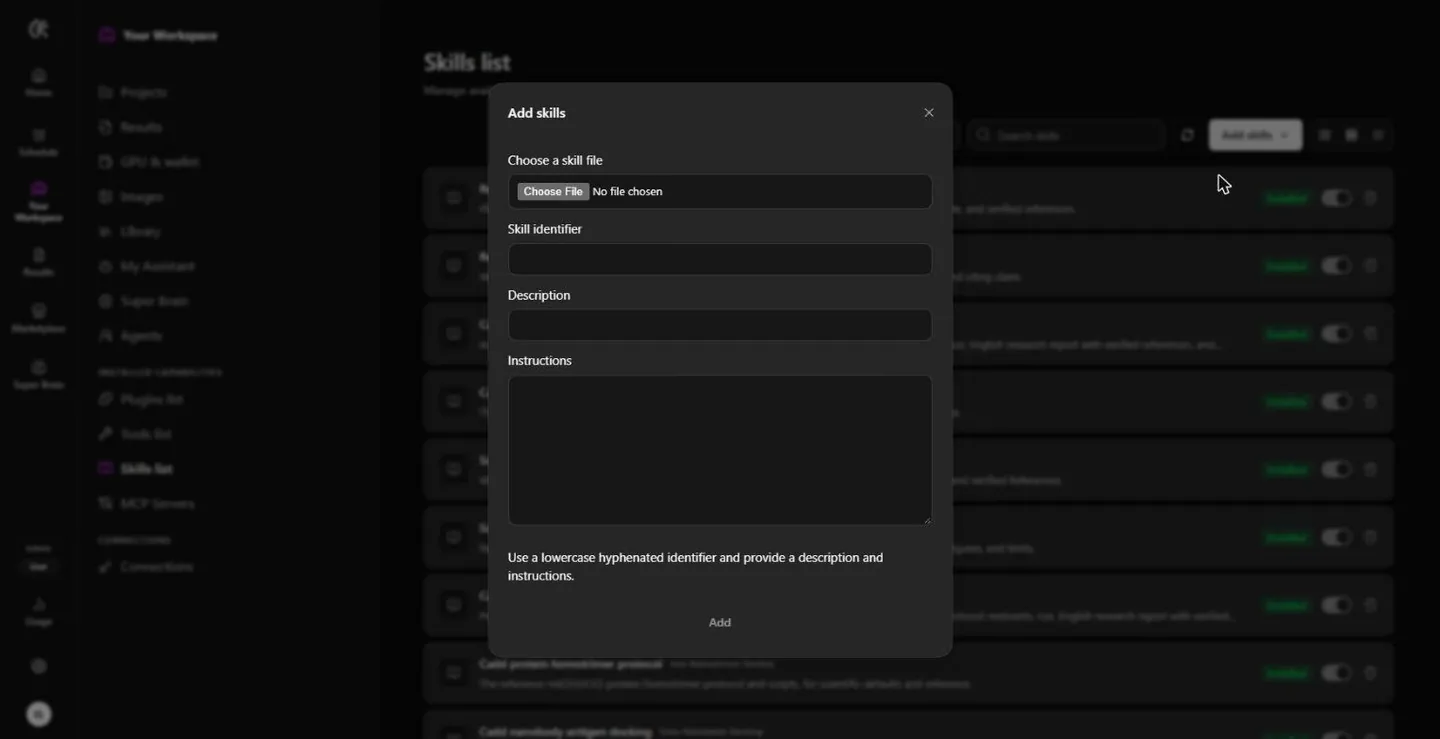
A researcher can write a skill straight into their own library — Your Workspace → Skills list → Add skills → Create skill — which asks for the same four things in a form: an identifier, a description, the instructions, or a skill file to read them from. It is the same shape as the manifest above, which makes it a quick way to try wording before you package it.
Make a Plugin
A plugin is the same ebonex-science-plugin/v1 file with more than one skill in it — between 1 and 16. Publish it with Type set to Plugin.
{
  "format": "ebonex-science-plugin/v1",
  "id": "binding-site-review",
  "title": "Binding Site Review",
  "description": "Read a docking result and say, with evidence, whether the pose is believable and what to measure next.",
  "version": "1.0.0",
  "skills": [
    {
      "id": "binding-site-review-pose",
      "title": "Pose check",
      "description": "Check a docking pose against the pocket, the contacts and the control.",
      "instructions": "State the pocket by its residues. List the hydrogen bonds with distances, then the hydrophobic contacts. Compare with the co-crystallised ligand and give the RMSD. Say what the score is not."
    },
    {
      "id": "binding-site-review-note",
      "title": "Reviewer's note",
      "description": "Write the short note a reviewer would write about this pose, with its limits stated.",
      "instructions": "Write at most 300 words of prose, no bullet points. Open with the finding, then the evidence in the order it was measured, then the limits as a paragraph. Cite software with its version."
    }
  ]
}
Ordered steps
An uploaded file cannot declare a chain — the validator takes those six fields and no others. A chain belongs to an in-product plugin definition, where the steps can name the tools that perform them:
ctx.scienceLibrary.register({
  id: capabilityId('binding-site-review'),
  kind: 'plugin',
  title: 'Binding site review',
  description: 'The whole review as one study: fetch the structure, check the pose, write the note.',
  version: '1.0.0',
  skills: [scienceSkillId('binding-site-review-pose'), scienceSkillId('binding-site-review-note')],
  field: 'docking',
  chain: [
    { role: 'prepare', title: 'Fetch the structure', tool: capabilityId('pdb-fetch'), operation: 'pdb_fetch' },
    { role: 'analyse', title: 'Check the pose', skill: scienceSkillId('binding-site-review-pose') },
    { role: 'report', title: 'Write the note', skill: scienceSkillId('binding-site-review-note'), optional: true },
  ],
})
The rules the chain validator enforces:
- Between 1 and 24 steps, and at least one of them not
optional. roleis one ofprepare,simulate,analyse,post-analyse,figures,report. The agent reads the role, not your wording, so it knows which step draws the figures and which writes the report.- Each step names exactly one performer: either
toolandoperationtogether, orskillon its own. Both, or neither, is an error. - A step's
skillmust be one of the plugin's ownskills. - Step titles are unique within the chain, up to 120 characters; an optional
noteof up to 500 characters carries the one extra sentence the agent needs to run that step correctly.
A plugin with a chain also publishes the chain itself as a guide skill, named <plugin-id>-chain, so asking for the whole study loads one ordered guide rather than five loose capabilities. Keep that identity free.
Connect an MCP server
Open Your Workspace → MCP Servers and choose Add server. A remote server needs only a name and a URL; a local one is under Advanced.
- Server name — 1–32 letters, numbers, underscores or hyphens.
- Transport — Streamable HTTP for a remote endpoint, or Local process for a command on this machine.
- MCP server URL — an
httporhttpsURL. A URL carrying a username or password is refused; use a credential reference instead. - Command, Arguments (one per line) and Working directory — for a local process. It runs in the host environment with sensitive ambient variables scrubbed.
- Environment credential references and Header credential references —
NAME=REF, one mapping per line. You give the name of a reference, never the secret. The manager resolves each one when it connects; the value never enters the page, the profile settings or any result. - Tool timeout — a positive whole number of milliseconds.
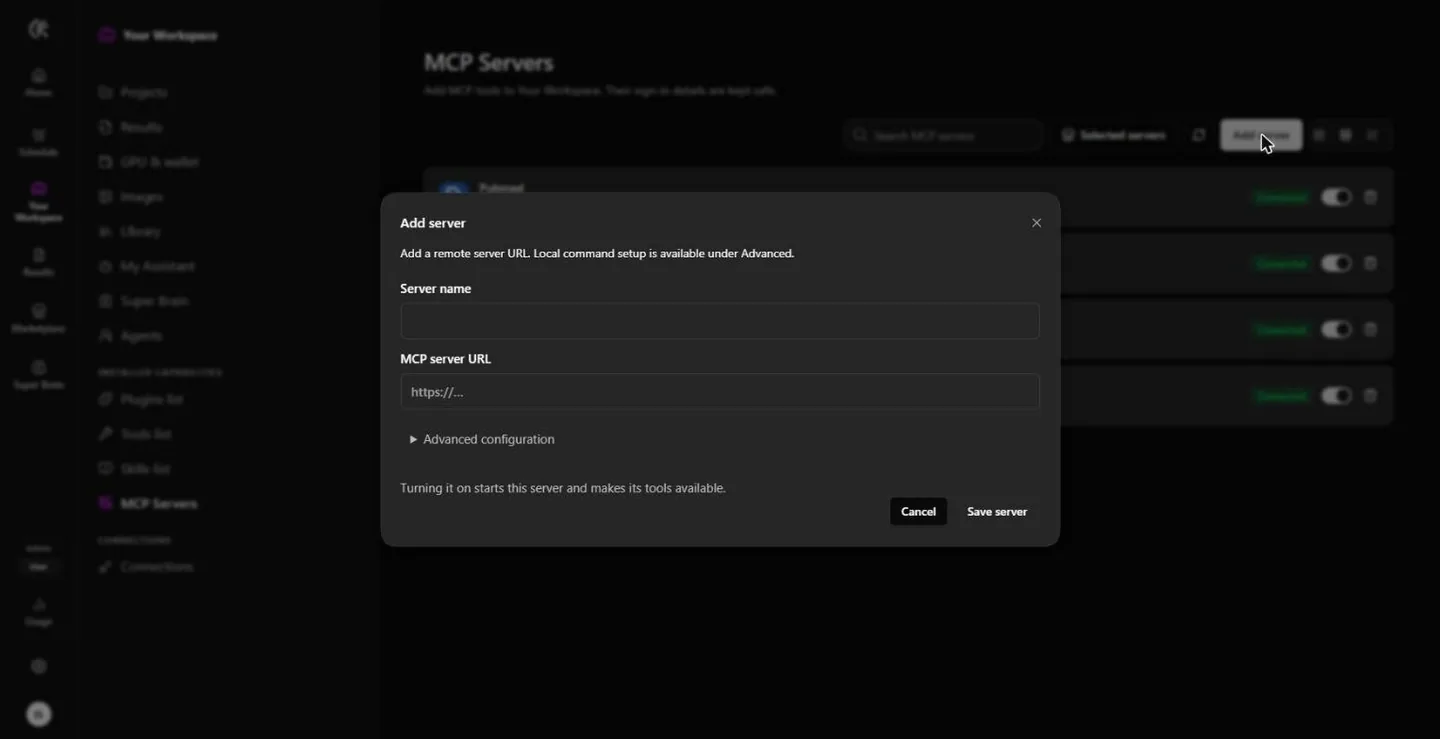
Saved servers show their state — Connecting, Connected, Reconnecting, Connection failed, Disabled, Stopped — along with the names of the tools discovered on them. You can edit, enable, disable, reconnect or remove a server; disabling or removing it stops the connection and withdraws its tools from the agent at once. Browse official registry opens the community MCP Registry in a separate tab: choosing a listing there shows it to you, it does not install anything.
The current client exposes an MCP server's tools. Resources and prompts are not consumed yet.
Publish to the Marketplace
Open Marketplace and choose Publish to Marketplace. The button at the bottom of the form says Send for review, which is what it does: an EBONEX administrator checks every submission before anyone else can see it.
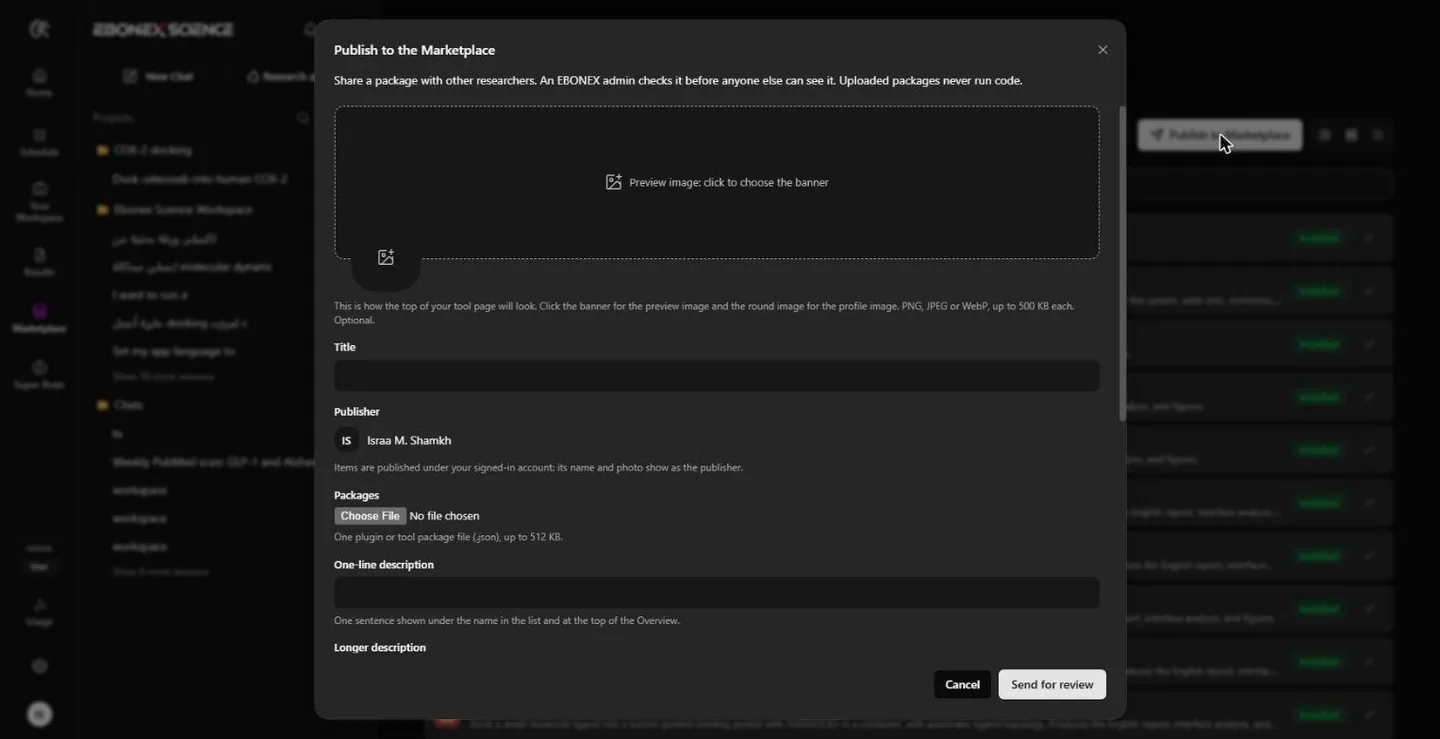
- Preview image and profile image — click the banner for the wide one, the round frame for the small one. PNG, JPEG or WebP, up to 500 KB each. Both optional, and together they are the top of your listing page.
- Title — up to 120 characters. It is filled in from your package's own title and you can change it.
- Publisher — your signed-in account. Its name and photo are what researchers see; there is nothing to fill in.
- Package file — one
.jsonplugin or tool file, up to 512 KB. It is parsed in your browser first, so a malformed file is caught before it is sent. - Type — Plugin or Skill, shown only for a plugin file. A tool file is always published as a Tool.
- One-line description — up to 160 characters. It sits under the name in the list and at the top of the Overview.
- Longer description — at least 20 characters, up to 4000. What it does and what the researcher gets.
- GitHub repository link —
https://github.com/owner/repository. Optional, and the fastest way to be trusted. - What you give it and What comes back — one item per line, for example
Protein structure (.pdb)andDocking poses (.sdf). - Detail tabs — up to 6, each with a title of up to 40 characters and a body of up to 6000. Each becomes its own tab on your listing page: Tutorial, How to use, Validation, Citation. A tab with a title and no text, or text and no title, is rejected; an untouched empty tab is simply dropped.
Two things are true of every uploaded package, and saying them here saves a rejection: uploaded packages never run code, so a tool file is a description that waits for a trusted provider; and the instructions inside a plugin are loaded by the agent as guidance, so they must be the method you would defend in a paper, not a prompt that talks the agent out of its checks.
Review and approval
This is the whole path from the moment you press Send for review, in order.
Step 1 — the server checks it again
Your browser checks the form, and then the server checks the package from scratch, trusting nothing the browser said. The whole submission must be under 2.25 MB, and the package inside it is re-parsed and re-validated against the same exact-key rules described above. Two of the server's limits are looser than the installer's, which is the one trap worth knowing about, and the checklist below explains it.
A few fields are not taken from what you send: the publisher name is read from your account, the research group from your profile, and the kind is derived from the package's format — a tool file is always published as a Tool, and a plugin file is published as a Plugin or a Skill depending on what you chose.
Step 2 — the package is scanned
Every string in the package, and the listing's own name, summary, description, inputs, outputs and detail tabs, are read line by line against six rules:
- Instruction override — text that tries to countermand what the agent was told: ignore or forget previous instructions, “you are now”, developer mode, a line beginning
system:, chat-template markers, or asking the agent to keep something from the user. The same phrasings in Arabic and Chinese are matched too. - Secret requests — a verb like send, upload, reveal or exfiltrate near a secret: an API key, a token, a password,
.env,process.env,~/.ssh, AWS credentials. - Hidden characters — zero-width spaces, bidirectional overrides, byte-order marks and Unicode tag characters: text a reviewer cannot see but a model reads.
- Encoded blobs — long base64 or hex runs, and strings of
\xNNor%NNescapes. - Hidden markup — HTML comments,
<script>and friends,display:none,visibility:hidden,font-size:0. - Suspicious URLs — anything that is not plain
https, plus link shorteners, tunnels, request collectors, paste sites, chat webhooks, punycode hosts, bare IP addresses, and URLs carrying a template placeholder or a secret-looking query parameter.
The scan never rejects your submission. It records what it found and marks the listing flagged, and the submission is accepted either way. What a flag does is take away the one-click approval: an administrator then has to read every highlighted finding and tick a box saying so before they can publish it. A flag is not an accusation, and a false positive is normal — a long base64 string in an example will trigger one. If you know why something will flag, say so in the longer description and the review goes faster.
Step 3 — what the administrator sees
Your submission lands in Admin → Marketplace review → Awaiting review with a pill saying either “Scan: nothing found” or how many findings there were. Opening it shows your cover image, your summary, your name and research group, the longer description, your inputs and outputs, the GitHub link as a real link, every scan finding with the matching text highlighted in context, and then the entire package text, line numbered, with the flagged lines marked. They read the package itself, not a summary of it.
What that screen does not show is your detail tabs and your round profile image. They are stored, they are scanned, and researchers see them on your published page — but they are not what the decision is made on. So make the case for your package in the longer description, the inputs and outputs, and the package itself.
The reviewer has two actions and no third: Approve and publish, or Reject with reason. There is no “request changes” and no comment thread.
Step 4 — the four states
| State | What it means |
|---|---|
| In review | Sent and waiting. Nobody but an administrator can see it. |
| Published | Approved and live in the Marketplace for every signed-in researcher. |
| Not approved | Rejected, with a written reason of at least three characters that you can read on the row. |
| Paused | Approved but taken out of the catalogue. Only an administrator can pause an item. |
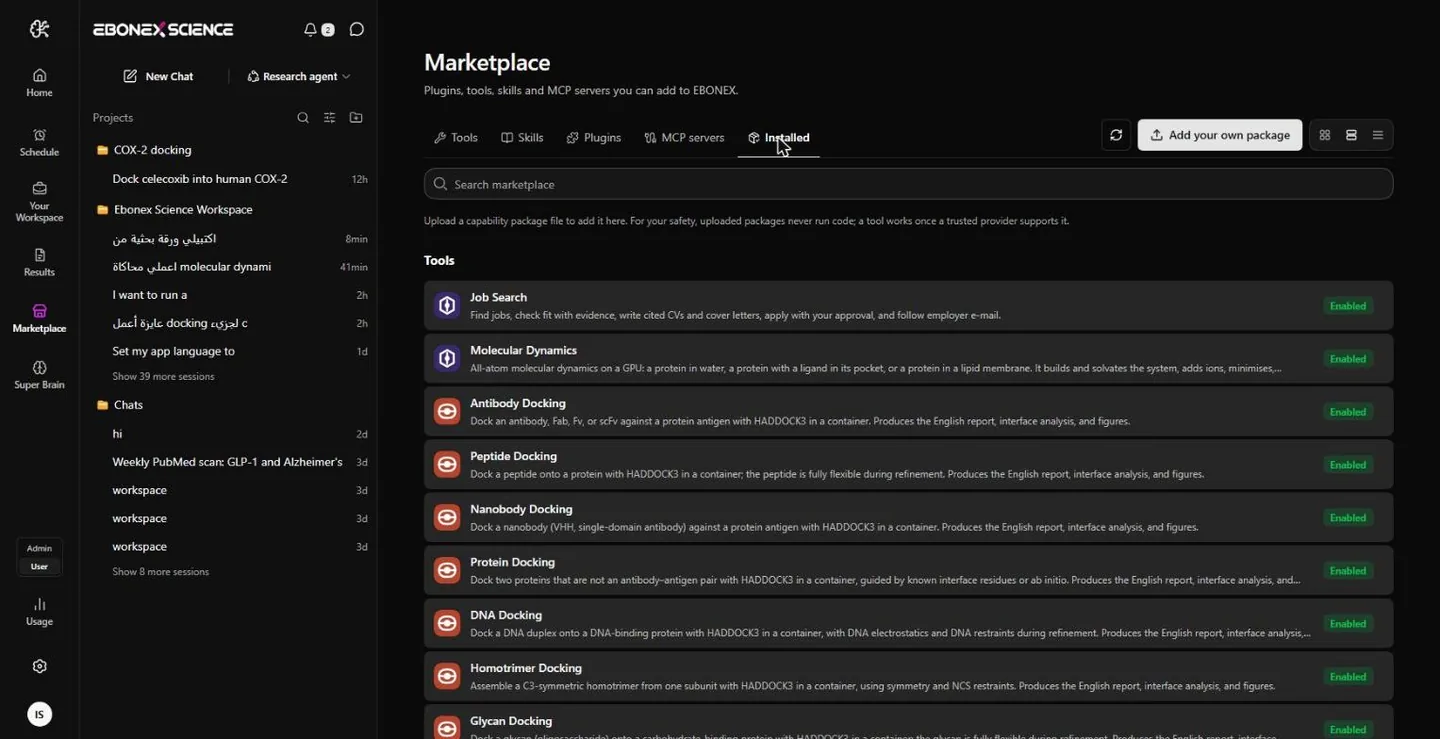
Follow your own submissions in the Marketplace under Installed, in My submissions. Nothing is e-mailed to you: a decision appears on that row the next time you open the page, so check back rather than waiting for a message.
Rejecting an item that was already live also takes it out of the catalogue. Pausing removes it from everyone's Marketplace and stops anyone downloading it again — but researchers who already added it keep their copy and it keeps working, because adding a package copies it into that researcher's own library rather than linking to yours.
Review checklist
Everything a submission has to satisfy, in the order it is checked. Run down it before you send and you will not be rejected for a mechanical reason.
The package
formatis exactlyebonex-science-plugin/v1orebonex-science-tool/v1, the file is.json, and it is under 512 KB.- The key set is exact. An extra key is a rejection, not a warning — which is the point: a
runorscriptkey cannot smuggle itself in. idis lowercase kebab-case, 1–80 characters.titleat most 120,descriptionat most 500,version1–64 characters of anything.- A tool declares 1–32 operations, each lowercase kebab-case, at most 80 characters, no duplicates.
The skills-count trap
Publishing and installing are checked by different code with different limits, and the publishing side is the looser one:
| Limit | Publishing allows | Installing allows |
|---|---|---|
| Skills in a plugin | 1 to 32 | 1 to 16 |
| Instructions, one skill | 20,000 characters | 32 KiB |
| Instructions, whole plugin | no total | 256 KiB |
A plugin with twenty skills will pass validation, pass the scan, and be approved and published — and then fail for every researcher who tries to add it, with plugin must contain between 1 and 16 skills. Keep to 16 skills and 32 KiB each, and your package works everywhere.
The listing
- Title 1–120 characters. One-line description 1–160. Longer description at least 20 and at most 4000.
- Inputs and outputs: at most 20 lines each, each line at most 200 characters.
- Detail tabs: at most 6, each with both a title (at most 40) and a body (at most 6000). A tab with only one of the two is rejected; an empty tab is simply dropped.
- GitHub link, if you give one:
https://github.com/owner/repoexactly. No deep links, no other host, nowww., at most 300 characters. It is never fetched, so a link to a repository that does not exist will publish happily and cost you the trust it was meant to buy.
Images
- PNG, JPEG or WebP. Not SVG. At most 500 KB each. Both are optional.
- No dimensions are enforced — nothing checks width, height or aspect ratio. The cover is drawn as a wide banner and the profile image as a round mark, so compose for those shapes yourself or they will be cropped badly.
Permissions and licence
- A declarative package declares no permissions, because it has no implementation that could use any. Permissions belong to in-product Tool packages, which declare them in their capability definition and show them before Add. Do not write a permissions key into an uploaded manifest: the exact-key check will reject the file.
- There is no licence field anywhere in this flow — not in the manifest, not on the form, not on the listing. If your work carries a licence, put it in the GitHub repository and state it in the longer description. Nothing enforces it for you.
Versions and changes
Read this before you publish, because it changes how you should plan a package.
There is no update path. A published item cannot be edited, re-uploaded or replaced, and you cannot withdraw or delete a submission. Re-submitting the same package id creates a second, independent submission that is reviewed from scratch, and if both are approved both appear in the Marketplace at once, with the same id inside them. An administrator can pause an old one; nobody can delete it.
The version field is not used after publication. It is validated as 1–64 characters of free text — not semver, not compared with anything, not required to increase — and it is not copied onto the listing, so it is not shown in the Marketplace and the reviewer never sees it. A researcher meets it in exactly two places: the import review that appears before they confirm, and the row in their own library afterwards.
And on their side, a new version is not an upgrade. The installer refuses an id that is already present, including one sitting in their removed list, so to take your new version a researcher has to remove the old package and then permanently delete it — which erases the instructions it carried.
What to do about it
- Treat a published package as final. Get it right before you send it, not after.
- Still set a truthful
version. It is the only way a researcher can tell two copies apart once they are installed. - Put the version in the longer description too, since that is where it is actually visible.
- Point the GitHub link at a repository where the real history lives. That is where versioning works.
- If you must publish a revision, say so in the title or the description so researchers know which to take, and ask an administrator to pause the old one.
Troubleshooting
The publish form reports every server rejection with the same sentence — “Could not send this item. Check the fields and try again.” — so the message does not tell you which rule you broke. The underlying code is in the network response if you open your browser's developer tools; otherwise work down this table, which is ordered by how often each one actually bites.
| Code | What went wrong |
|---|---|
invalid_listing_package | Anything wrong inside the package file: an unknown format, an extra or missing key, an id that is not lowercase kebab-case or is over 80 characters, a title over 120, a description over 500 or empty, an empty version, a plugin whose skills are not 1–32 well-formed entries, instructions over 20,000 characters, or operations that are not 1–32 unique kebab-case names. This one code covers them all, so re-read the package against the checklist rather than guessing. |
invalid_listing_description | The longer description is under 20 characters or over 4000. Under 20 is the common one: a one-line answer in the long box. |
invalid_listing_github | The link is not exactly https://github.com/owner/repo. A link to a file, a branch, an issue, a www. host or another site all fail here. |
invalid_listing_cover / invalid_listing_icon | An image that is not PNG, JPEG or WebP, or whose encoded form exceeds 700 KB. An SVG fails here even though it is an image. |
invalid_listing_tabs | More than 6 tabs, or a tab missing its title or its text, or a title over 40 or a body over 6000 characters. |
invalid_listing_inputs / invalid_listing_outputs | More than 20 lines, or a line over 200 characters. |
invalid_listing_name / invalid_listing_summary | Title blank or over 120; one-line description blank or over 160. The form's own length caps usually prevent these. |
body_too_large | The whole submission is over 2.25 MB. Almost always two large images plus a large package; shrink the images first. |
invalid_json | The submission itself was not valid JSON. If you are posting to the API by hand rather than using the form, start here. |
unauthenticated | Your session expired while the form was open. Sign in again; the form does not keep what you typed, so copy your text out first. |
After it is sent
| What you see | What it means |
|---|---|
| It stays “In review” | Nothing is wrong and nothing is e-mailed. A flagged scan means a person has to read the whole package line by line, which takes longer than a clean one. |
| “Not approved” with a reason | The reason is the whole feedback; there is no thread. Fix it and send a new submission — the rejected one cannot be edited or reused. |
| Approved, but nobody can add it | Almost certainly the skills-count trap: more than 16 skills, or instructions over 32 KiB. Publish a corrected package and ask for the old one to be paused. |
| “Paused” | An administrator took it out of the catalogue. Researchers who already added it are unaffected; nobody new can download it. |
Limits at a glance
| What | Limit |
|---|---|
| Manifest file | 512 KB |
| Package id | kebab-case, 80 characters |
| Skill id | kebab-case, 100 characters |
| Title | 120 characters |
| Description | 500 characters |
| Version | 64 characters |
| Skills per plugin | 1 to 16 |
| Instructions per skill | 32 KiB |
| Instructions per plugin | 256 KiB |
| Operations per tool package | 1 to 32, kebab-case, 80 characters each |
| Chain steps | 1 to 24, at least one not optional |
| Chain step note | 500 characters |
| Listing one-line description | 160 characters |
| Listing longer description | 20 to 4000 characters |
| Listing images | PNG, JPEG or WebP, 500 KB each |
| Detail tabs | 6 tabs, title 40, body 6000 |
| MCP server name | 1 to 32 letters, numbers, _ or - |
Write the file, upload it, send it for review
A plugin with one good skill in it is a real contribution, and it takes an afternoon. If you are building something that needs to execute, write to us before you start and we will tell you what the in-product package needs.